Using the Wanaku MCP Router
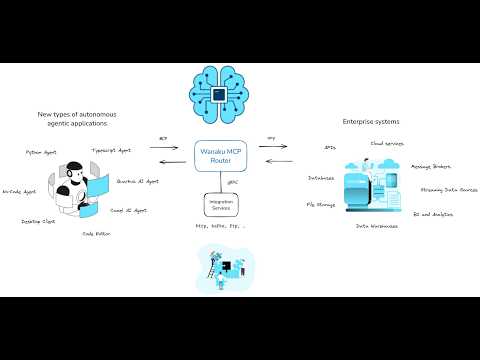
Wanaku aims to provide unified access, routing and resource management capabilities for your organization and your AI Agents.
Meet Wanaku
If you haven't seen it already, we recommend watching the Getting Started with Wanaku video that introduces the project, and introduces how it works.
NOTE
Also check the Getting Started from the demos repository.
Overview
In addition to installing the Wanaku MCP Router, it is also necessary to install the CLI used to manage the router. The Wanaku MCP Router CLI provides a simple way to manage resources and tools for your Wanaku MCP Router instance.
NOTE
Wanaku also comes with a web user interface that you can access on port 8080 of the host running the router, but at this moment, some features are only available on the CLI.
The MCP endpoint exposed by Wanaku can be accessed on the path /mcp/sse of the host your are using (for instance, if running locally, that would mean http://localhost:8080/mcp/sse)
Getting the CLI
Getting the CLI by downloading binary
The best way to install the CLI is by downloading the latest cli from the latest release.
NOTE
You may also find a container for the CLI on our Quay.io organization, although it is not entirely tested at the moment.
Getting the CLI via JBang
First, you must install JBang. See instructions on JBang how to download and install.
After JBang is installed, you can verify JBang is working by executing the following command from a command shell:
jbang versionWhich should output the version of JBang.
To make it easier to use Wanaku CLI, then install the following:
jbang app install wanaku@wanaku-ai/wanakuThis will install Wanaku CLI as the wanaku command within JBang, meaning that you can run Wanaku from the command line by just executing wanaku (see more next).
Note: It requires access to the internet, in case of using a proxy, please ensure that the proxy is configured for your system. If Wanaku JBang is not working with your current configuration, please look to Proxy configuration in JBang documentation.
Quick Getting Started (Local)
After downloading the CLI, simply run wanaku start local and the CLI should download, deploy and start Wanaku with the main server, a file provider and an HTTP provider. If that is successful, open your browser at http://localhost:8080, and you should have access to the UI.
Quick Getting Started (Docker Compose)
Wanaku needs providers and tools to serve and route. These are the downstream services that Wanaku talk to.
The first step is to launch them.
Get the docker-compose.yml:
wget https://raw.githubusercontent.com/wanaku-ai/wanaku/refs/heads/main/docker-compose.ymlThen, you can launch the containers using:
docker-compose up -dAlternatively, using podman:
podman compose up -dOpen Wanaku Console to easily import toolsets, add new tools, resources, and test tools using simple LLMChat:
open http://localhost:8080Importing a ToolSet
Wanaku ToolSets are a group of tools that you can use to share with friends and colleagues and can be easily imported into the router. Wanaku comes with a couple of ToolSets that you can import into your router and use them to try it and see how it works.
The first step is to import toolset into the router using:
wanaku tools import https://raw.githubusercontent.com/wanaku-ai/wanaku-toolsets/refs/heads/main/toolsets/currency.jsonif you already have a toolset definition on your local machine you can import it using:
wanaku tools import /path/to/the/toolsets/currency.jsonNow you can check if they were imported by running the following command:
wanaku tools listSupported Commands
The following commands are currently supported by the Wanaku MCP Router CLI:
List Resources
Lists available resources exposed by the Wanaku MCP Router instance. Run this command to view a list of available resources, including their names and descriptions.
wanaku resources listExpose Resource
Exposes an existing resource to the Wanaku MCP Router instance.
Example
Suppose you have a file named test-mcp-2.txt on your home directory, and you want to expose it. This is how you can do it:
wanaku resources expose --location=$HOME/test-mcp-2.txt --mimeType=text/plain --description="Sample resource added via CLI" --name="test mcp via CLI" --type=fileList Tools
Lists available tools on the Wanaku MCP Router instance. Run this command to view a list of available tools, including their names and descriptions.
wanaku tools listExample
Name               Type               URI
meow-facts      => http            => https://meowfacts.herokuapp.com?count={parameter.valueOrElse('count', 1)}
dog-facts       => http            => https://dogapi.dog/api/v2/facts?limit={parameter.valueOrElse('count', 1)}
Add Tool
Adds an existing tool to the Wanaku MCP Router instance.
Example
Here's how you could add a new tool to a Wanaku MCP router instance running locally on http://localhost:8080:
wanaku tools add -n "meow-facts" --description "Retrieve random facts about cats" --uri "https://meowfacts.herokuapp.com?count={parameter.valueOrElse('count', 1)}" --type http --property "count:int,The count of facts to retrieve" --required countNOTE: For remote instances, you can use the parameter --host to point to the location of the instance.
Generate Tools
The generate command converts an OpenAPI specification into a collection of tool references that can be used by an AI agent. It parses and resolves OpenAPI paths and operations, transforming them into a standardized tool reference format for HTTP services. This command accepts an OpenAPI specification file (either as a local path or URL) and produces a JSON output containing tool references. Each operation in the API is converted to a tool reference with appropriate metadata, including the operation's name, description, URI template, and input schema. The command handles server variable substitution, proper formatting of path parameters according to the tool reference specification. By default, the command uses the first server defined in the OpenAPI specification, but you can override this behavior by specifying a different server URL or selecting a different server from the specification by index. The generated output can be directed to standard output or saved to a file. If the process completes successfully, the command returns exit code 0. It returns exit code 3 if no paths are found in the specification and exit code 2 if an error occurs during processing.
Example
The command support both json and yaml definition:
wanaku tools generate http://petstore3.swagger.io/api/v3/openapi.yamlIf the spec defines a server url that contains variables
servers:
  - url: 'https://{env}.domain.com/foo/{v1}/{v2}/{v3}'
    variables:
      env:
        description: Environment - staging or production
        default: stage-api
        enum:
          - stage-api
          - api
      # other variables
      # ...
you can specify values as command parameters:
wanaku tools generate --server-variable env=prod --server-variable v1=first http://petstore3.swagger.io/api/v3/openapi.jsonIf not specified for a variable in the server URL template, the default value defined in the OpenAPI specification will be used. It Only applies when using servers from the OpenAPI specification (not when using --serverUrl). Variables must be defined in the server object of the OpenAPI specification. Empty or null values for either key or value will be ignored.
OpenAPI specifications can define multiple server URLs:
{
  "servers": [
    {
      "url": "https://api.example.com/v1",
      "description": "Production server"
    },
    {
      "url": "https://staging-api.example.com/v1",
      "description": "Staging server"
    },
    {
      "url": "http://localhost:8080/v1",
      "description": "Local development server"
    }
  ]
}
The --server-index (or -i) option allows you to specify which server definition from the OpenAPI specification should be used as the base URL for tool references.
wanaku tools generate -i 1 ./openapi-spec.yamlThis option is ignored if --server-url is specified, as an explicit URL overrides any server definitions in the specification. If neither --server-index nor --server-url is specified, the command will default to using the first server (index 0) from the specification. The --serverIndex option can be used together with --server-variable when the selected server has variable templates:
servers:
  - url: https://{environment}.api.example.com/{version}
    variables:
      environment:
        default: dev
      version:
        default: v1
  - url: https://{environment}.api2.example.com/{version}
    variables:
      environment:
        default: dev
      version:
        default: v1
  - url: https://{environment}.api3.example.com/{version}
    variables:
      environment:
        default: dev
      version:
        default: v1
You could select this server and override its variables:
wanaku tools generate -i 0 -v environment=prod -v version=v2 ./openapi-spec.yamlThe --output-file (or -o) option specifies the file path where the generated tool references should be written. It determines where the output JSON containing all the tool references will be saved.
wanaku tools generate -o ./toolsets/api-tools.json http://petstore3.swagger.io/api/v3/openapi.jsonIf --output-file is specified, the command will write the JSON toolset to the specified file path. If --output-file is not specified, the command will write the JSON toolset to standard output (STDOUT). If the specified path is a directory, the command will write to a file named out.json within that directory and provide a warning message. If the specified file already exists, the command will return an error without overwriting the file. The parent directory of the specified file must exist and be writable by the current user.
Targets
Configuring Targets
Tools services may need to be configured before they can be run. For instance, the Kafka tool needs to know both the address of the broker and the topic where to wait for a reply.
wanaku targets tools configure --service=kafka --option=bootstrapHost --value=my-kafka-host:9092And, then to configure the reply to topic:
wanaku targets tools configure --service=kafka --option=replyToTopic --value=someTopicToWaitFor.replyTargets List
You can view linked targets using the targets tools list or the target resources list command.
wanaku targets tools list
Service                 Target                            Configurations
kafka                => localhost:9003                 => bootstrapHost, replyToTopic
http                 => localhost:9000                 =>
ToolSets
To add a tool to a toolset:
wanaku toolset add ./path/to/toolset-file.json -n "meow-facts" --description "Retrieve random facts about cats" --uri "https://meowfacts.herokuapp.com?count={parameter.valueOrElse('count', 1)}" --type http --property "count:int,The count of facts to retrieve" --required countAPI Note
All CLI commands use the Wanaku management API under the hood. If you need more advanced functionality or want to automate tasks, you may be able to use this API directly.
By using these CLI commands, you can manage resources and tools for your Wanaku MCP Router instance.
Tools
When adding a tool to Wanaku, there are two key considerations:
- Service Handling: Determine which service will handle the request and process the input data.
- Tool/Service Arguments: Identify any arguments (also known as properties) that the tool and/or service accept.
Simplified Tool Addition
For some services, adding a new tool to Wanaku is straightforward and can be done using a command similar to this:
wanaku tools add -n "my-tools" --description "My specialized tool that does something special" --uri "mytool://name" --type my-tool-service-typeThis method is suitable for services that provide their own endpoint definitions (i.e.: Kafka, Tavily, SQS, etc).
Flexible Input Data
However, some services may require a more flexible definition of input data.
For instance, consider HTTP endpoints with dynamic parameters:
http://my-host/api/{someId}http://my-host/api/{someId}/createhttp://my-host/api/{someId}/link/to/{anotherId}
In cases where the service cannot predetermine the actual tool addresses, users must define them when creating the tool.
This documentation should provide a clear understanding of the two key considerations and the process for adding tools to Wanaku.
Creating URIs
Building the URIs is not always as simple as defining their address. Sometimes, optional parameters need to be filtered out or query parameters need to be built. To help with that, Wanaku comes with a couple of expressions to build them.
To access the values, ou can use the expression {parameter.value('name')}. For instance, to get the value of the parameter id you would use the expression {parameter.value('id')}. You can also provide default values, if none are provided, such as http://my-host/{parameter.valueOrElse('id', 1)}/data (this would provide the value 1 if the parameter id is not set).
It is also possible to build the query part of URIs with the query method. For instance, to create an URI such as http://my-host/data?id=456 you could use http://my-host/data{parameter.query('id')}. If the id parameter is not provided, this would generate an URI such as http://my-host/data. This can take multiple parameters, so it is possible to pass extra variables such as {parameter.query('id', 'name', 'location', ...)}.
IMPORTANT
Do not provide the ? character. It is added automatically the parsing code if necessary.
Building the query part of URIs can be quite complex if there are too many. To avoid that, you can use {parameter.query} to build a query composed of all query parameters.
The values for the queries will be automatically encoded, so a URI defined as http://my-host/{parameter.query('id', 'name')} would generate http://my-host/?id=456&name=My+Name+With+Spaces if provided with a name value of "My Name With Spaces".
Running Camel Routes as Tools
You can design the routes visually, using Kaoto. You need to make sure that the start endpoint for the route is direct:start. If in doubt, check the hello-quote.camel.yaml file in the samples directory.
To add that route as a tool, you can run something similar to this:
wanaku tools add -n "camel-rider-quote-generator" --description "Generate a random quote from a Camel rider" --uri "file:///$(HOME)/code/java/wanaku/samples/routes/camel-route/hello-quote.camel.yaml" --type camel-routeSpecial/Reserved Arguments
In the command above, we used the property wanaku_body. That is a special property that indicate that the property/argument should be part of the body of the data exchange and not as part of a parameter. For instance, consider an HTTP call. In such cases, this indicates that the property should be part of the HTTP body, not as part of the HTTP URI. How parameters like these are handled may vary according to the service being used.
Currently special arguments:
wanaku_body: special property to indicate that
Forwards (MCP-to-MCP Bridge)
The MCP bridge in Wanaku allows it to act as a central gateway or proxy to other MCP servers that use HTTP as the transport mechanism.
This feature enables a centralized endpoint for aggregating tools and resources provided by other MCP servers.
Listing Forwards
To view a list of currently configured forwards, use the wanaku forwards list command:
wanaku forwards listThis command displays information about each forward, including its name, service URL, and any other relevant details.
This can be useful for managing and troubleshooting MCP server integrations.
Adding Forward
To add an external MCP server to the Wanaku instance, use the wanaku forwards add command:
wanaku forwards add --service="http://your-mcp-server.com:8080/mcp/sse" --name my-mcp-server--service: The URL of the external MCP server's SSE (Server-Sent Events) endpoint.--name: A unique human-readable name for the forward, used for identification and management purposes.
Once a forward is added, all tools and resources provided by the external MCP server will be mapped in the Wanaku instance.
These tools and resources can then be accessed as if they were local to the server.
Removing Forward
To remove an external MCP server from the Wanaku instance, use the wanaku forwards remove command:
wanaku forwards remove --service="http://your-mcp-server.com:8080/mcp/sse" --name my-mcp-server--service: The URL of the external MCP server's SSE (Server-Sent Events) endpoint.--name: The human-readable name for the forward to be removed.
Note that attempting to remove a non-existent forward will result in an error message. If you want to remove multiple forwards, simply repeat the command with different names and service URLs.
Example Use Case
Suppose you have two MCP servers: http://mcp-server1.com:8080/mcp/sse and http://mcp-server2.com:8080/mcp/sse.
To integrate these external MCP servers into your Wanaku instance, follow these steps:
- Add the first forward using the
wanaku forwards addcommand:
wanaku forwards add --service="http://mcp-server1.com:8080/mcp/sse" --name mcp-server-1- Use the
wanaku forwards listcommand to confirm that the forward has been successfully added:
wanaku forwards list- Verify that all tools and resources from
mcp-server1are now accessible within your Wanaku instance usingwanaku tools list
Name               Type               URI
tavily-search-local => tavily          => tavily://search?maxResults={parameter.value('maxResults')}
meow-facts      => mcp-remote-tool => <remote>
dog-facts       => mcp-remote-tool => <remote>
camel-rider-quote-generator => mcp-remote-tool => <remote>
tavily-search   => mcp-remote-tool => <remote>
laptop-order => mcp-remote-tool => <remote>- Add the second forward using the same command:
wanaku forwards add --service="http://mcp-server2.com:8080/mcp/sse" --name mcp-server-2- Confirm that tools and resources from both external MCP servers are now integrated into your Wanaku instance (use
wanaku tools list) - Use the
wanaku forwards listcommand to view the updated list of forwards:
wanaku forwards listBy leveraging the MCP bridge feature, you can create a centralized endpoint for aggregating tools and resources from multiple external MCP servers, simplifying management and increasing the overall functionality of your Wanaku instance.
Supported/Tested Clients
Wanaku implements the MCP protocol and, by definition, should support any client that is compliant to the protocol.
The details below describe how Wanaku MCP router can be used with some prominent MCP clients:
Embedded LLMChat for testing
Wanaku Console includes simple LLMChat specificly designed for quick testing of the tools.
NOTE
At the moment, the Embedded LLMChat supports only the tools.
open http://localhost:8080- Setup LLM -
baseurl,api key,model, and extra parameters - Select tools
- Enter prompt and send
HyperChat
Wanaku works with HyperChat. To do so, you can configure Wanaku as an MCP server using the MCP configuration as shown below:

IMPORTANT
Make sure to have Wanaku up and running before configuring HyperChat. You may also need to close and reopen HyperChat.
After configuring HyperChat, you may need to go the Main Window and edit any existing agent if you have any. Then, in the agent configuration Window, in the allowMCPs option, make sure you mark Wanaku as an allowed MCP server. If in doubt, check the HyperChat project documentation.
NOTE
Older versions of HyperChat (pre 1.1.13) required manually editing the mcp.json file as described on the improvement ticket. This is not necessary for newer versions.
LibreChat
For LibreChat search for mcpServers on the librechat.yml file and include something similar to this:
mcpServers:
    everything:
        url: http://host.docker.internal:8080/mcp/sse
IMPORTANT
Make sure to point to the correct address of your Wanaku MCP instance.
In LibreChat, you can access Wanaku MCP tools using Agents.
Witsy
We also have tested Wanaku with Witsy - AI Desktop Assistant.
Using an STDIO gateway
Wanaku does not support stdio. Therefore, to use Wanaku with to use it with tools that don't support SSE, it is necessary to use an stdio-to-SSE gateway. The application super gateway can be used for this.
npx -y supergateway --sse http://localhost:8080/mcp/sseAvailable Resources Providers
Visit this page to check all the providers that come built-in with Wanaku.
Available Tools Services
Visit this page to check all the tools that come built-in with Wanaku.
Adding Your Own Resource Provider or Tool Service
Wanaku leverages the Apache Camel to provide connectivity to a vast range of services and platforms. Although we aim to provide many of them out-of-the box, not all of them will fit all the use cases. That's why we make it simple for users to create custom services that solve their particular need.
Creating a New Resource Provider
To create a custom resource provider, you can run:
wanaku services create resource --name y4To run the newly created service enter the directory that was created (i.e.,; cd wanaku-provider-y4), then build the project using Maven (mvn clean package).
Then, launch it using:
java -Dvalkey.host=localhost -Dvalkey.port=6379 -Dvalkey.timeout=10 -Dquarkus.grpc.server.port=9901 -jar target/quarkus-app/quarkus-run.jarYou can check if the service was registered correctly using wanaku targets resources list.
IMPORTANT
Remember to set the parameters in the application.properties file.
Creating a New Tool Service
To create a custom tool service, you can run:
wanaku services create tool --name jmsTo run the newly created service enter the directory that was created (i.e.,; cd wanaku-tool-service-jms), then build the project using Maven (mvn clean package).
Then, launch it using:
java -Dvalkey.host=localhost -Dvalkey.port=6379 -Dvalkey.timeout=10 -Dquarkus.grpc.server.port=9900 -jar target/quarkus-app/quarkus-run.jarYou can check if the service was registered correctly using wanaku targets tools list.
IMPORTANT
Remember to set the parameters in the application.properties file.
To customize your service, adjust the delegate and client classes.
Adjusting Your Resource Provider or Tool Service
After created, then most of the work is to adjust the auto-generated Delegate class to provide the Camel-based URL and, if necessary, coerce the response from an specific type to String.
In some cases it may also be necessary to implement your own Client or Resource consumer. In those cases, then you also need to write a class that leverages Apache Camel's ProducerTemplate and (or, sometimes, both) ConsumerTemplate to interact with the system you are implementing connectivity too.
Implementing Services in Other Languages
The communication between Wanaku MCP Router and its downstream services is capable of talking to any type of service using gRPC, therefore, it's possible to implement services in any language that supports it.
For those cases, leverage the .proto files in the core-exchange module for creating your own service.
CAUTION
At this time, Wanaku is being intensively developed, therefore, we cannot guarantee backwards compatibility of the protocol.
NOTE
For plain Java, you can still generate the project using the archetype, but in this case, you must implement your own delegate from scratch and adjust the dependencies.